If your PO approval flow starts only at Pending approval, routes by dollar amount, and writes the result back at once, you cut extra runs, reduce delays, and keep a clean audit trail.
I’d sum up the setup like this: Azure Logic Apps sits between your ERP, file storage, and Microsoft 365 tools to move a purchase order from event to decision to system update. The flow needs four parts to work well: a clean trigger, one standard PO payload, clear approval rules, and failure handling that logs every step.
Here’s the article in plain English:
- I start the workflow only when a PO needs human review
- I pass a small payload with fields like PO number, amount, legal entity, and correlation ID
- I send PO files from email, SharePoint, or Blob Storage into one staging path
- I use AI document review to pull key fields from the document and send approval requests in Outlook or Teams
- I route approvals by amount, supplier type, project code, or multi-step policy
- I write the decision back to the ERP or CRM with approver name, UTC time, comments, run ID, and document reference
- I add retries, timeout rules, queue-based failure handling, and monitoring in Azure Monitor and Application Insights
A few hard numbers shape the first release:
- Under $1,000.00: one manager approval
- $1,000.01 to $10,000.00: manager plus finance
- Above $10,000.00: manager, finance, and executive review
- Target at least 99%+ flow completion before adding more rules or systems
I’d keep version one tight: one source system, one PO schema, one approval channel, and one write-back path. That gives you a flow that is easier to test, track, and fix when something fails.
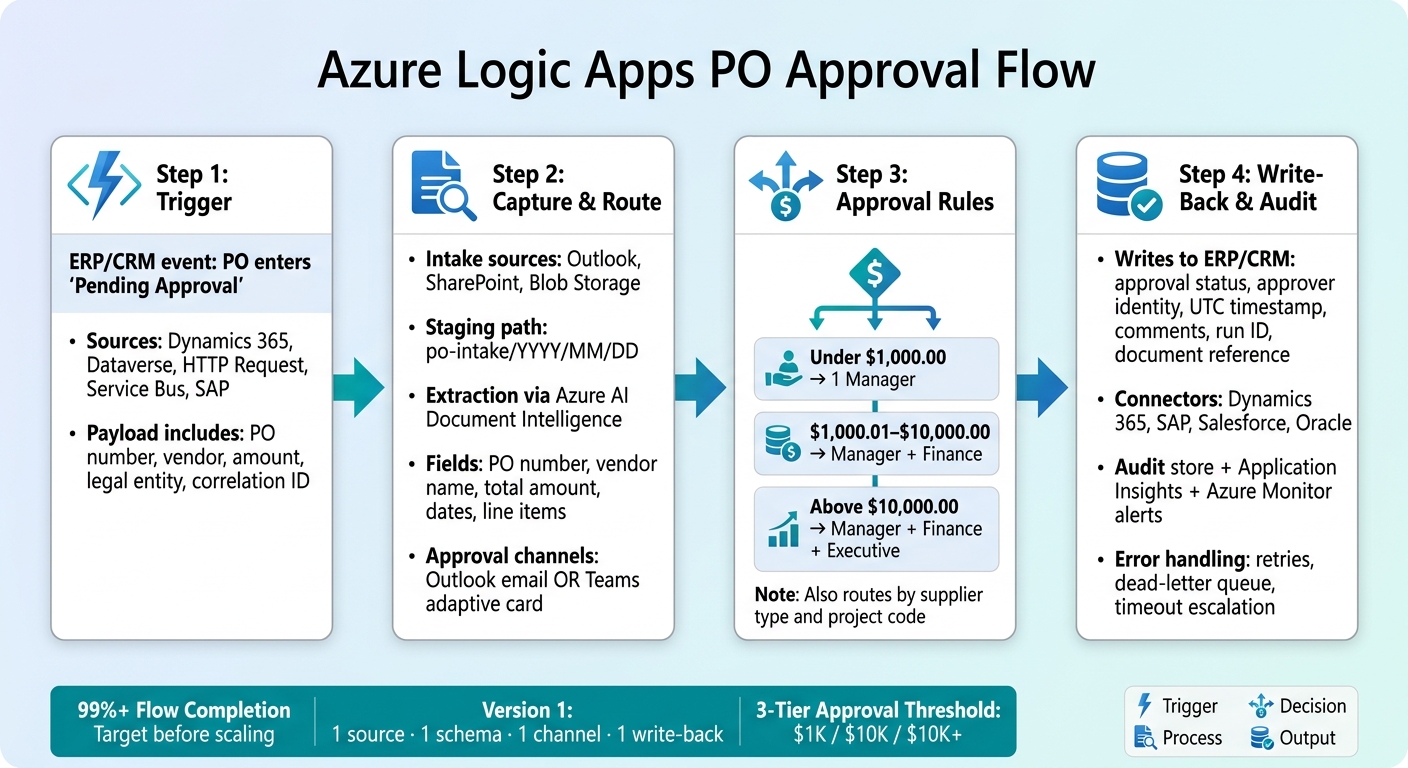
Azure Logic Apps PO Approval Flow: End-to-End Process
3. How To Create Multi-Level Approval Based Workflow Using Azure Logic Apps
Step 1: Trigger the Workflow from ERP or CRM Events
Start the flow only when a PO moves into Pending approval. That keeps the workflow clean and stops extra runs before a human decision is needed.
Use the trigger that matches how your source system sends data. For Microsoft systems, that usually means business events or Dataverse changes. For custom systems, use HTTP requests. For message-based handoff, use Service Bus or Event Grid. For SAP, use SAP message triggers.
Choose the Right Trigger Pattern
The right trigger comes down to one thing: what your source system can publish.
In Microsoft-heavy setups, Dynamics 365 Finance and Operations can send business events for PO milestones, such as PurchaseOrderConfirmed or a custom PurchaseOrderSubmittedForApproval event. Dataverse can react to row-level status updates with the “When a row is added, modified, or deleted” trigger.
For custom or older systems, the Request trigger, “When an HTTP request is received”, gives you an endpoint that the ERP or middleware can call when a PO hits Pending approval. If your event is already moving through a messaging layer, Azure Service Bus or Event Grid is a good fit for the handoff. And for SAP links, the SAP managed connector can listen with the “When a message is received” trigger.
Use Recurrence only if you have no better option. It adds delay and puts extra load on the system.
If you expect high volume, put Azure Service Bus between the ERP and Logic Apps. Think of it like a waiting room for messages. It helps absorb bursts and makes the flow more reliable when downstream systems are backed up.
Configure Source Events for PO Approval
Once you pick the trigger, pass along only the fields the approval flow needs. Don’t send the whole record if the workflow uses just a handful of values. That keeps payloads smaller and makes downstream mapping less messy.
Set up the source system to send events only when a human approval is required. Each event should also include a unique correlation ID. In most cases, that means the PO number plus a system-generated identifier, so every step downstream can trace back to the original event.
In Dynamics 365 Finance and Operations, enable the needed business event in the Business Events catalog, send it to Azure Service Bus or Event Grid, and make sure the payload includes:
- PO number
- Vendor account
- Amount
- Legal entity
- Workflow state
- Correlation ID
The PurchaseOrderConfirmed event can fire from more than one source, so be careful about which scenarios should actually start the approval flow. [1]
For Dataverse-based workflows, add a trigger condition so the flow starts only when the record is in Pending approval and, if needed, only when it is above your approval threshold. For SAP-connected interfaces, normalize the payload in middleware before it reaches Logic Apps. In plain English: map SAP fields to the standard field set your approval flow expects.
Once the event is filtered down to Pending approval POs, the next move is to use document intelligence to capture the document and send the approval request.
Step 2: Capture the PO Document and Route the Approval
Once the PO reaches Pending approval, the next job is simple in theory: grab the file, pull out the data you need, and send it to the right approver.
Capture PO Files and Extract Key Fields
POs can come in through email, SharePoint, or Blob Storage, so your intake flow needs to handle all three.
For Outlook shared mailboxes, use the “When a new email arrives in a shared mailbox” trigger. Filter messages by subject patterns like “PO” or by vendor domain, then save the attachments to a staging location.
For SharePoint, use “When a file is created (properties only)” on your PO library. Limit it to PDF, TIFF, or PNG files so the flow only picks up the formats you expect.
For Blob Storage, use “When a blob is added or modified” on a dedicated intake container.
No matter where the file starts, write every inbound document to one standard staging path first, such as po-intake/2026/08/30, using U.S. date order. That gives you one clean handoff point before extraction and approval kick in.
From there, pass the staged file to Azure AI Document Intelligence. It returns key-value pairs, line items, and table structures from the document. That lines up with the PO fields you need, including:
- PO number
- Vendor name
- Total amount
- Issue date
- Due date
- Line details
Format the values in a consistent way. Use $1,250.00 for amounts, 08/30/2026 for dates in messages, 2026-08-30 for system fields, and USD for currency. That may sound small, but it saves a lot of cleanup later.
Send Approval Tasks in Outlook or Teams
After extraction, Logic Apps sends the approval to the right channel.
For Outlook, use the “Send the approval request by email” action. Show the PO number, vendor, total, requested date, and key line items. Include Approve and Reject buttons so the approver can act right from the email. When the response comes back, a Condition action checks the SelectedOption output and sends the flow down the right branch.
For Teams, post an adaptive card and wait for a response. The card should show the same PO summary in a format that works well on mobile, with Approve and Reject actions built in. Capture the approver’s identity, decision, and comments for the audit trail.
The good part here is that both Outlook and Teams can use the same PO payload. So the write-back step gets the same data no matter which channel the approver used.
Which one should you use? It depends on how your approvers work.
| Dimension | Outlook Approvals | Teams Adaptive Cards |
|---|---|---|
| User experience | Familiar email thread; formal and linear | Conversational, in-channel; real-time |
| Identity capture | Email address via standard authentication | Teams UPN via Microsoft 365 identity |
| Mobile access | Outlook Mobile app | Teams Mobile app; optimized for small screens |
| Best fit | Office-based staff, finance, executives | Field supervisors, operations, high-frequency approvers |
Use Outlook for formal approvals. Use Teams when the goal is faster action in day-to-day operations.
Handle Single-Step and Multi-Step Approvals
Not every PO should follow the same approval path. Your routing rules should match your procurement policy.
A common U.S. threshold model looks like this:
- POs under $1,000.00 go to one department manager
- POs from $1,000.01 to $10,000.00 go to the department manager first, then a finance reviewer
- POs above $10,000.00 add an executive review step
Dollar amount is only part of the picture. Supplier type and project code can change the route too. High-risk or strategic vendors may need procurement or legal review no matter the amount. POs tied to certain projects, like aerospace contracts, infrastructure builds, or manufacturing programs, often need project manager sign-off on top of the normal finance chain.
In Logic Apps, handle sequential approvals by chaining approval actions together. Wait for the first decision, check it, and only send the next request if the prior approver said yes. If any approver rejects the PO, stop the flow and log the result.
For parallel approvals, send requests to multiple reviewers at the same time and wait until both responses come back before moving on.
Set clear due dates for each approval step and show them in local time, such as Due by 09/02/2026 5:00 PM PT. Add reminder logic so the flow nudges approvers before the deadline instead of after it slips by.
Next, write the decision back to the ERP or CRM and log it.
Step 3: Write the Decision Back and Add Production Controls
When someone clicks Approve or Reject, that decision can’t just sit in the workflow. It needs to go straight back into your ERP or CRM.
The flow should run in a clear sequence: approval response → ERP update → audit record → alert on failure.
Update ERP or CRM with Approval Status
As soon as the approver responds, save that decision in the system of record first. In plain terms: write the approval back to the ERP or CRM right away.
Use native connectors when they exist. Logic Apps has connectors for Dynamics 365, SAP, Salesforce, and Oracle. If a native connector doesn’t fit, call the ERP API over HTTP through Azure API Management so authentication and authorization stay consistent.
At a minimum, write these fields back to the source record:
- approval status
- approver identity
- UTC timestamp
- approver comments
- Logic App run ID
- reference to the staged document, such as a SharePoint file ID or Blob Storage URI
That last field matters more than it may seem. If someone needs to review the original PO later, they should be able to pull it up without digging through folders or old emails.
You should also write the same decision to a separate audit store.
Build Error Handling and Retry Logic
Treat the write-back and audit steps like production work, not nice-to-have cleanup.
Wrap the write-back actions in a Scope and use run-after rules to catch failures. For transient connector or API issues, turn on automatic retries with exponential backoff. For failures that won’t fix themselves, send the event to Service Bus or an Azure Storage queue, alert operations, and mark the audit record as Pending system update.
| Error-Handling Pattern | Failure Type | Response Method | When to Use |
|---|---|---|---|
| Dead-letter and reprocessing | Persistent failures (bad data, config issues) | Move failed messages to a durable queue | High-value POs where failures must not be lost |
| Idempotency and duplicate checks | Duplicate ERP events for the same PO | Check PO number + event type before processing | When source systems can emit repeated events |
| Auto-timeout and escalation | Approvals not completed within the SLA | Auto-reject or escalate after timeout | Regulated or high-value purchases with strict deadlines |
Human approvals need guardrails too. Set a timeout on the approval action. Then use run-after rules to send expired approvals to a Handle_Timeout scope. From there, either auto-reject the PO or escalate it to a supervisor, based on your procurement policy.
Add Monitoring and Audit Trails
After the write-back succeeds, track every run for operations and compliance.
Logic Apps run history is the first place to look when something breaks. It shows inputs, outputs, and status for each action. From there, connect Logic Apps to Application Insights and Azure Monitor.
Enable enhanced telemetry so each run emits structured events tagged with the PO number, approval outcome, and Logic App run ID. That makes tracing a single transaction much easier. Search by PO number or run ID, and you can follow the same record across systems.
Set Azure Monitor alerts for failure rates and approval duration thresholds that matter to the business. And don’t mark the flow complete until the audit record has been written.
Conclusion: Build a Practical PO Approval Flow on Azure Logic Apps
Once the flow works from end to end, keep the first release tight and stable. Start with one ERP/CRM trigger, one PO schema, one approval channel, and one write-back path. Keep the routing simple until the flow proves it can run without drama.
Key Implementation Priorities
Use these priorities to keep the first deployment ready for production.
| Priority | What to Get Right First |
|---|---|
| Trigger design | Clean ERP/CRM event, correlation ID, standard payload |
| PO data capture | Canonical schema with vendor, line items, total, and date |
| Approval UX | Simple approval card in Teams or Outlook |
| Status write-back | Idempotent API call and ERP re-read |
| Monitoring and audit | Structured logs, PO number, run ID, alerts before go-live |
For the first release, stick to one ERP source and one simple approval rule. When the flow is running at 99%+ completion with little manual help, then add multi-step routing, extra systems, and more complex business rules.
FAQs
When should a PO approval flow start?
A purchase order approval flow should begin the moment the purchase order is created from an intake source, like a contract or an ERP entry.
When the flow starts automatically, the system can check the order against master data and pricing agreements right away. Standard orders can pass through without manual work. But if something looks off, like a price mismatch, a new vendor, or terms that go over approval limits, the order can be sent to the right person for review.
How do I prevent duplicate PO approvals?
Use your ERP integration to check incoming requests against existing master data and active purchase orders. That way, only net-new requests - or approved exceptions - move to the next step.
Add exception handling to flag issues like reused PO numbers or duplicate entries for human review. This helps keep data clean by treating your ERP as the single source of truth.
What should I log for PO approval audits?
Log the key data used in the approval. That includes pricing, payment terms, and delivery schedules.
Also record whether each item matched ERP master data, along with any exception flags and the reason behind them. On top of that, keep the full history of approval tasks and routing decisions so anyone reviewing the process can see what happened, when it happened, and why.
The audit trail should also include error-handling and monitoring records. This helps support transparency, governance, and compliance.